Use the buttons for your iPhone
Press and release the two buttons together rather than holding them. Our simulator test used the Simulator's screenshot command; it did not test physical buttons.
| iPhone controls | Press together |
|---|---|
| Face ID, no Home button | Side + Volume Up |
| Home button and side power button | Home + Side |
| Home button and top power button | Home + Top |
A full-screen preview is not the same as a saved file
Apple's current guide says to swipe up or use the save control to store a full-screen screenshot in the photo library. Check the destination offered on your version, then reopen the result; do not assume that closing an editor proves it saved.
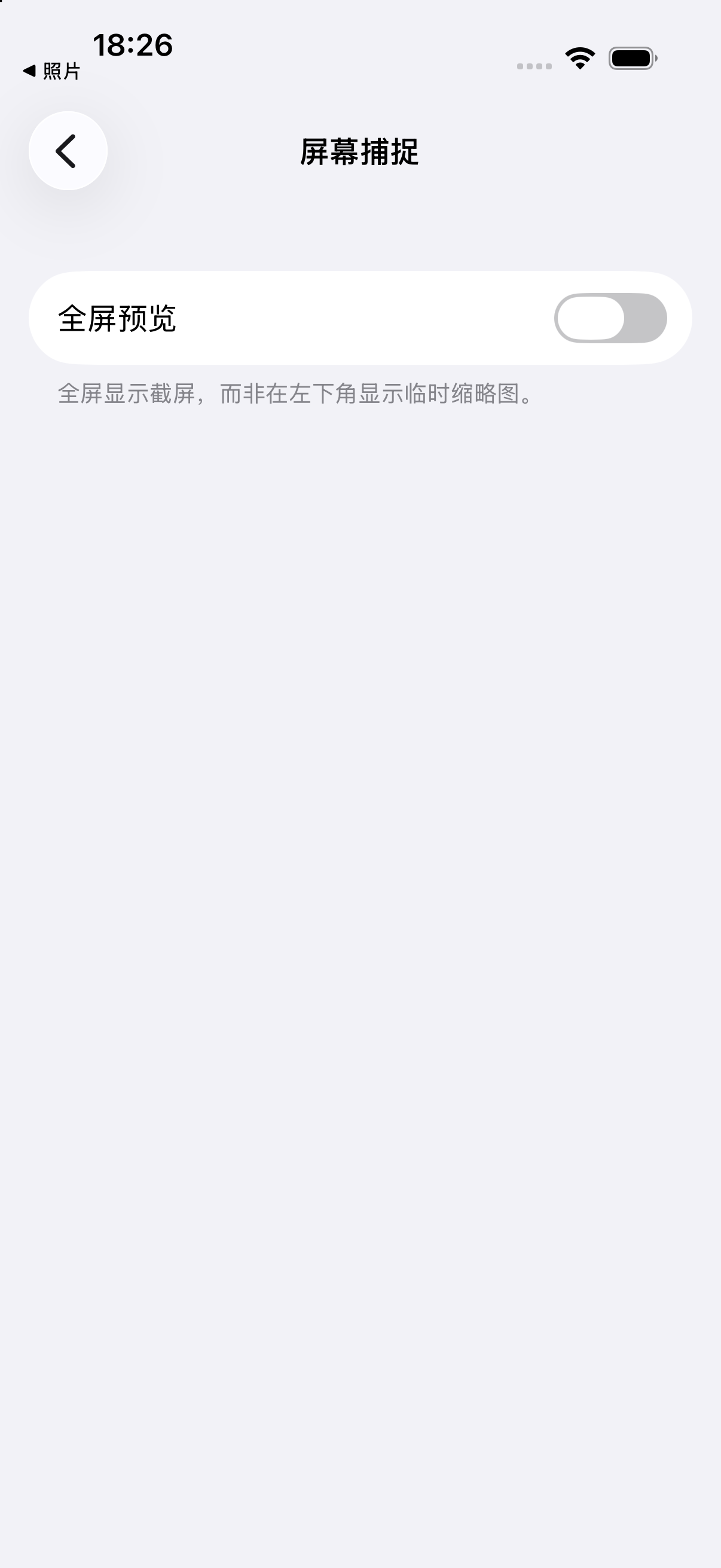
If you prefer the temporary corner thumbnail, Apple documents Settings → General → Screen Capture → turn Full-screen Previews off. In our iOS 26.1 simulator this switch was already off. We left it unchanged, triggered a screenshot, and later reopened the new image in Photos. We have not tested the enabled preview mode on a physical iPhone.
Find it in Photos, then check the right capture
Open Photos and look for the recent image, or use Collections → Media Types → Screenshots where that layout is available. Open it and compare a distinctive detail with what you intended to capture.
For a harmless check, use a screen without private messages or account details. After capture, open the new image and check both its content and time. Looking only at a thumbnail can confuse a new capture with an older similar image. This is our suggested verification procedure, not a guarantee that every app allows capture.
Why the file might not be PNG
Apple's iOS 27 Screen Capture guide lists PNG for SDR screenshots and HEIF for HDR screenshots. Check the actual file information before choosing a converter; our one simulator PNG does not establish the format for every iPhone.
If a destination rejects the image, first read its accepted-format and size rules. Keep the original, convert a copy only when required, and reopen that copy before uploading. Do not infer a failed capture simply because the extension differs from an example.
Full Page is a separate task
A normal screenshot captures the viewport, not necessarily the whole document. Apple's guide offers Full Page for supported content such as a Safari webpage, with a preview for checking additional areas.
We have not completed an end-to-end Full Page save test. This guide does not claim a tested PDF export, Files destination, or universal long-screenshot support. Before relying on a long capture, check its bottom as well as its top; if the option is absent, consult the app's own export or print workflow instead of resetting the phone.
What our simulator check actually confirmed
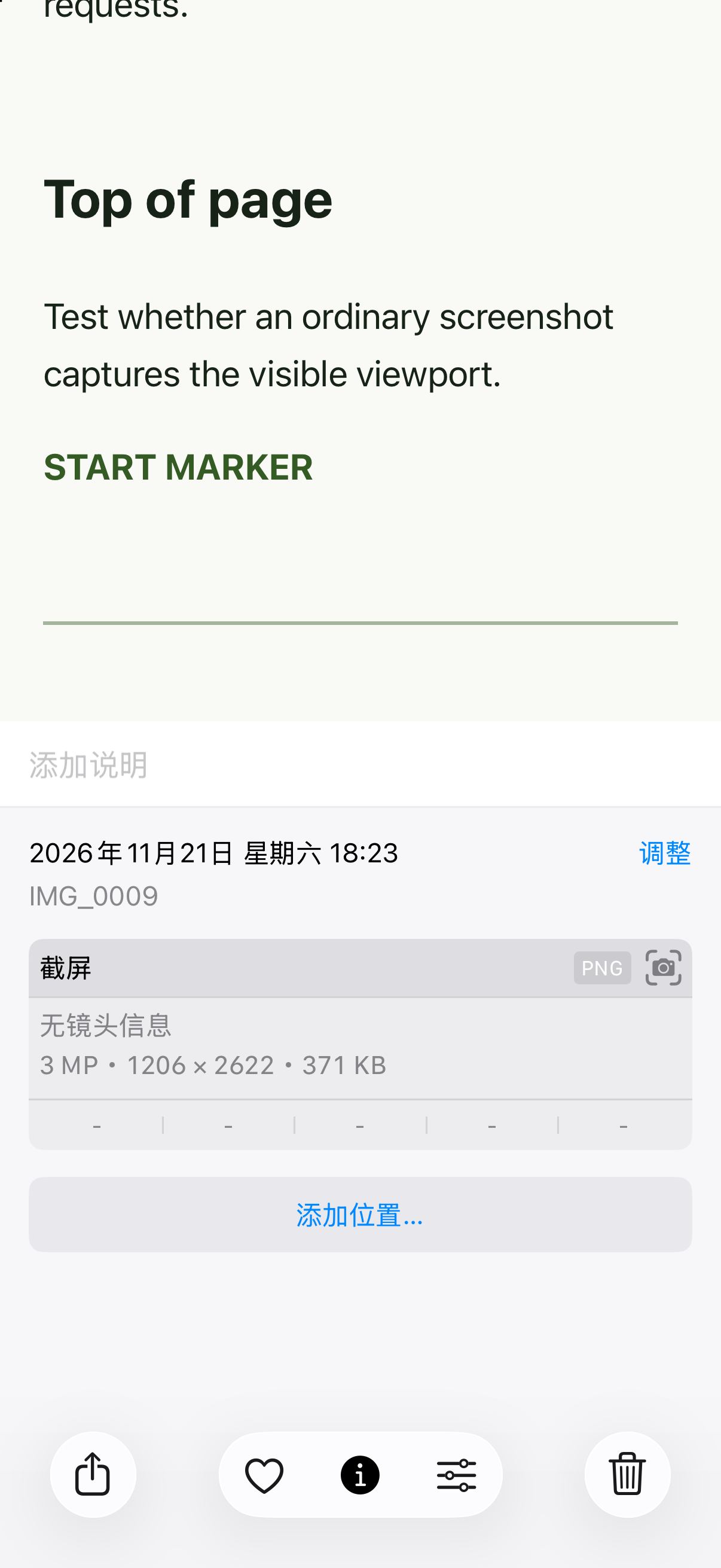
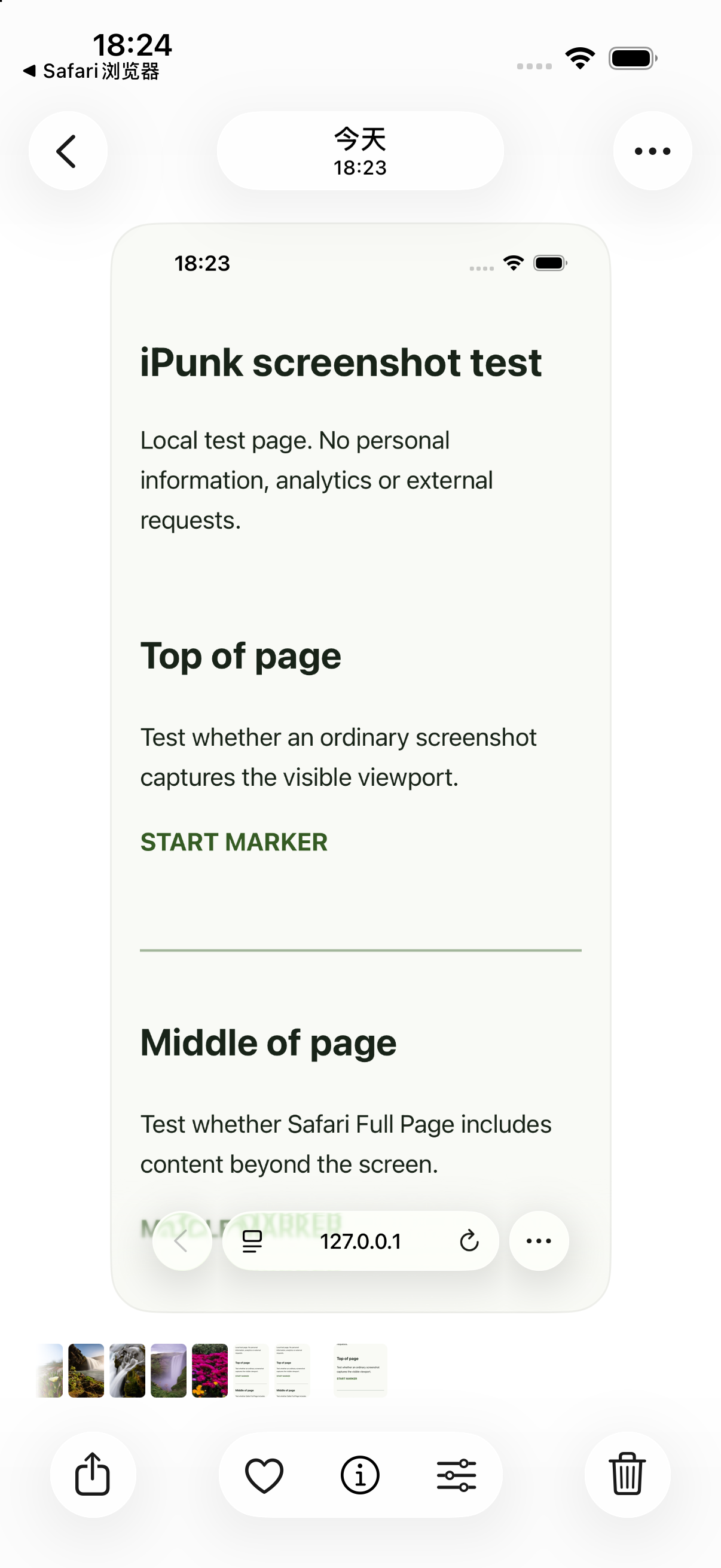
On November 21, 2026, we used an iPhone 17 Pro simulator running iOS 26.1, build 23B86, with a Simplified Chinese interface. Safari displayed a local page with start, middle and end markers and no external requests. The screenshot command produced a temporary thumbnail. Three synthetic captures appeared in Photos; we opened the newest one.
Photos identified that image as PNG, 1206 × 2622, 371 KB. Its content showed the viewport rather than the page's bottom marker. We also verified that Full-screen Previews was off. This establishes the observed save path and file details in that simulator, not an iOS 27 hardware test, image-quality benchmark or verification of every saving mode.
If you still cannot find the result
First distinguish an unconfirmed save from a capture-input problem. If an editor remains open, finish its save action; if you used a destination other than Photos, check that destination. Then repeat once on a harmless ordinary screen and reopen the output.
If the ordinary test works but one app fails, record the app, iOS version and exact behavior for support. If neither capture nor saving can be confirmed, use Apple's current instructions or support. Do not delete photos, reset settings or erase the device merely to make a screenshot appear.